Post-call analysis
Post-call analysis turns every finished call into structured data — a summary, sentiment, an outcome (disposition), action items, objections, your own custom fields, a QA rubric score, and an LLM-judge scorecard — without anyone listening to a recording. It runs automatically in the background after a call ends and never blocks the call itself.
It is configured per agent (not per organization): each agent has its own enable toggle, custom fields, and QA rubric, saved on the agent as metadata.postCallAnalysis. The analysis runs through Telenow's managed LLM layer, and the token cost is metered and billed to your organization like any other model usage (see Usage & billing).
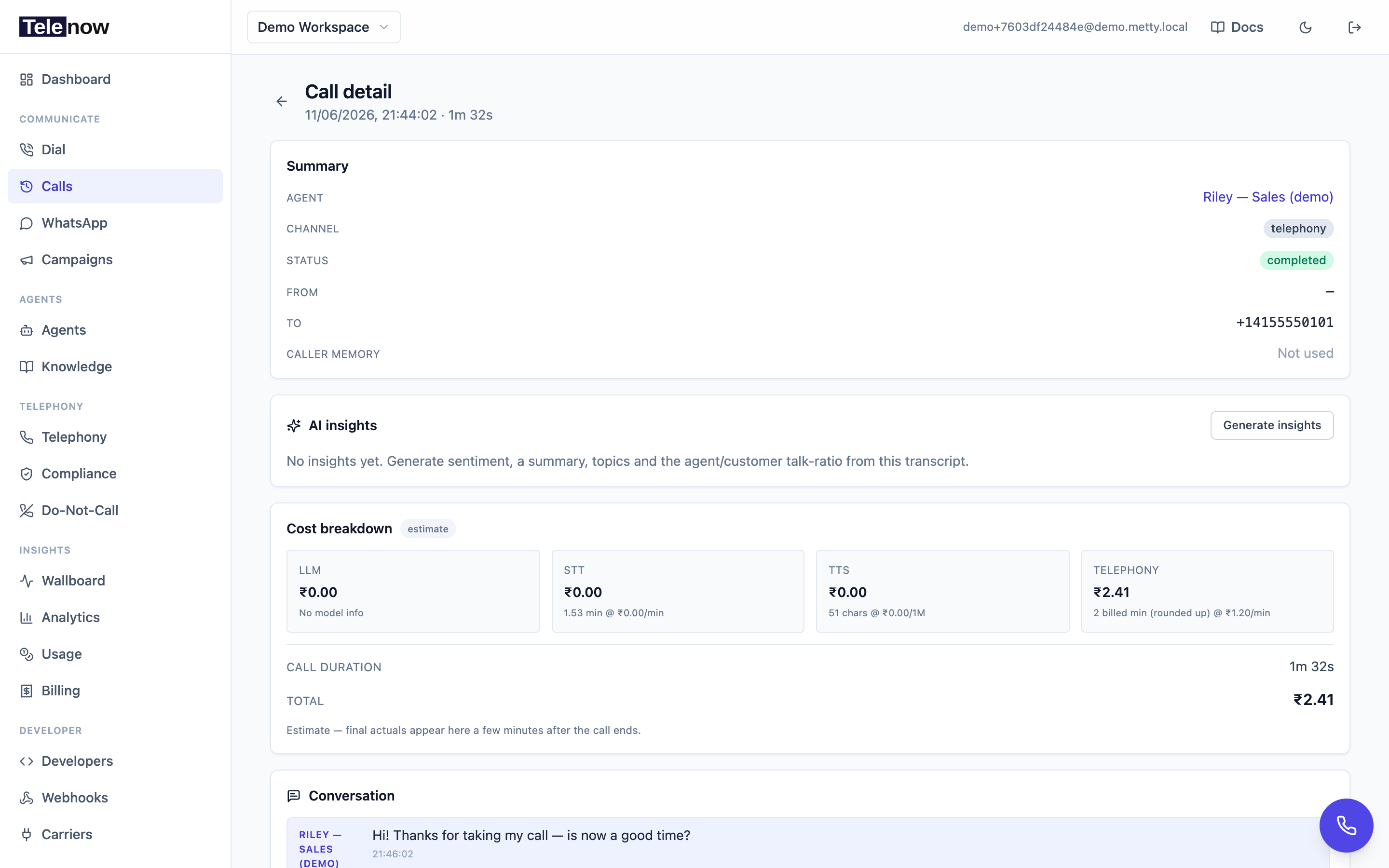
Analysis results appear on the call's detail page — alongside AI insights, the transcript, and the cost breakdown.
Enable it
In the agent builder, open the Analysis step and turn on Enable post-call analysis for this agent. Doing so adds an Analysis tab to the agent and starts analyzing every call it finishes from then on. Two things are configurable below the toggle:
Which calls get analyzed
Not every finished call is worth an AI pass. A voicemail beep the agent talked over, a hangup one word into the greeting, an IVR that answered and punted — each of those bills a full analysis and returns nothing you would act on. Two thresholds sit directly under the toggle:
| Setting | Applies to | Default |
|---|---|---|
| Skip calls shorter than | Voice calls — phone, browser calls, softphone | 20 seconds |
| Skip chats with fewer customer replies than | WhatsApp, Instagram, web chat | 2 customer replies |
Set either to 0 to analyze everything.
Text conversations are measured in replies rather than seconds on purpose. A chat's duration is the wall-clock gap between its first and last message, so it records how long the customer took to answer, not how much was said — a chat resolved in fifteen seconds would be thrown away while one left idle for ten minutes with two messages would be kept.
A skipped call produces no analysis at all — no row, no cost, and no entry in the disposition, objection or QA rollups on the agent's Analysis tab. That last part is the one to weigh before raising the threshold: if a typical "not interested" on your campaign runs 25 seconds and you set the minimum to 45, the rollup will report that you meet almost no objections. 20 seconds is the default because it clears voicemail and instant hangups while still keeping short real outcomes — a confirmation, or a refusal.
Both thresholds are per agent, saved as metadata.postCallAnalysis.minDurationSec and metadata.postCallAnalysis.minCustomerTurns, and are read from the config the call actually ran under — so changing one today never re-grades or retroactively skips calls that already happened.
Analysis language
The analysis is written in English by default, whatever language the call was in. Pick another language under Analysis language and the free text is written in that language instead: the summary, actionItems, objections, topics and keywords, the judge's coaching, hallucinations and cx notes, and every free-text custom field.
An agent can speak several languages, so this is its own setting rather than a guess from the call. It is a firm instruction to the model, placed after the agent's own prompt, so an agent told to "speak Hindi" still gets an English analysis unless you choose otherwise.
Values that software reads stay in English in every language, so reports, rollups and integrations keep working:
sentiment(positive/neutral/negative);disposition;- the
cxrating and coachingseverity; - true/false, numbers and dates;
- any custom field whose description lists the exact values to use.
evidence quotes stay word-for-word from the transcript. A custom field whose own description names a language (for example "in English, even if the call was in Hindi") is written in that language.
| Where | How |
|---|---|
| Agent builder | Analysis language, under the call-length thresholds. English (default) saves nothing. |
| Agent API | metadata.postCallAnalysis.language: a language code (hi-IN), a name (Hindi), or the builder's key (hi-IN|Hinglish (Hindi in Latin letters) for Hindi written in Latin letters). A value the platform cannot read is not saved, so the analysis stays in English. |
| App config | analysis.language in the agent's config group (agents:config:write:analysis). An unreadable value is a 400, and null resets to English. |
| One call | A pool number's routing endpoint can set the language for a single call with overrides.analysis_language. This is for one shared agent answering for people who read different languages. It overrides the agent's own setting for that call only. |
Like the thresholds, the language comes from the config the call actually ran under. Changing it applies to calls going forward and never rewrites analyses already stored.
What the analysis includes
Every part below is included by default. Untick any you don't use under Advanced analysis options → What the analysis includes.
An unticked part is removed from both the instructions and the output format the model fills in, so the model never produces it and you are not billed for it. In the call's analysis and in the call.analyzed webhook, its fields stay empty (null, [] or {}).
| Part | Fields |
|---|---|
| Summary | summary |
| Sentiment | sentiment, sentimentScore |
| Disposition | disposition |
| Action items | actionItems |
| Objections | objections |
| Evidence quotes | evidence |
| Topics and keywords | topics, keywords |
| QA judge | score, coaching, hallucinations, cx |
The QA judge is usually the biggest part of the output. It also sends the model up to 4,000 characters of the agent's own prompt, which the judge grades against. With the judge off and no QA rubric, that prompt is not sent.
Your custom fields and QA rubric are not affected; they run whenever they are configured. On the Analysis tab, rollups of a part you switched off (average score, top objections, topics) only count calls that still produced it.
Saved on the agent as metadata.postCallAnalysis.sections, e.g. {"judge": false}. Only the parts that are off are stored; any key that is missing or unreadable counts as on. Apps change it through the analysis.sections config group, where a patch updates only the parts it names.
Analysis instructions
The analysis prompt opens with a short paragraph that says who the analysis is written for and how it should read. By default it is written for the agent's owner — the business or person the agent answers for. The summary and action items say who the customer was (if they said), what they wanted, what was agreed or promised, and what is left to do. They describe what happened, not how the agent ran the call: the agent's language, questions and tone are left out unless they matter to you.
The summary is factual and in the third person, so it reads the same in a CRM, a shared sheet, or as context for a follow-up call. Anything left to do goes in actionItems.
You can rewrite this paragraph under Advanced analysis options → Analysis instructions — for example, to write for a sales team, or to lead with the order number. Only this paragraph can be edited. Everything after it is fixed and added for you:
- what the transcript is, and who "Agent" and "Customer" are;
- the fields, their names and their fixed values (
sentiment,disposition, thecxrating); - the parts ticked under What the analysis includes;
- your custom fields, the QA rubric and the QA judge;
- the analysis language.
Your paragraph shapes how the free text reads. It cannot add fields or rename them. An instruction that contradicts a fixed part, such as asking for a different language or other field names, can make results inconsistent.
| Where | How |
|---|---|
| Agent builder | Analysis instructions opens on the default text. It is saved only when you change it. Reset to default, or leaving the box blank, goes back to the default. |
| Agent API | metadata.postCallAnalysis.basePrompt, up to 2,000 characters. A value that is blank, longer, not text, or the default's own text is not saved, and the default is used. |
| App config | analysis.basePrompt reads as the paragraph in use: the agent's own, or the default's text. Write text of up to 2,000 characters, or null or blank for the default; longer is a 400. Writing back the default's text unchanged keeps the agent on the default. |
An agent that never changes this paragraph follows the default, including any later update to it. A paragraph you changed is kept as you wrote it. Like the other analysis settings, it applies from the next call and never rewrites analyses already stored.
Custom fields
Your own extraction targets — facts you want pulled out of every call. Click Add field and fill three columns:
| Column | Meaning |
|---|---|
| key | The JSON property the value is stored under (e.g. budget, order_id, competitor_mentioned). Required. |
| description | What the model should pull — plain-English instructions (e.g. "the caller's stated monthly budget"). |
| type | One of string, number, boolean, date. Unknown types are coerced to string. |
Up to 30 custom fields per agent. When a field can't be determined from the transcript the model sets it to null rather than guessing, and (where possible) records a verbatim supporting quote in the call's evidence. Extracted values land in the call's customData, keyed by your key. Entries with a blank key are dropped on save.
QA rubric (agent scorecard)
A list of yes/no criteria the model grades the agent against. Click Add criterion and give each:
- key — a short identifier, e.g.
verified_identity,read_disclosure. - criterion — the yes/no question, e.g. "Did the agent verify the caller's identity before sharing account info?"
Each criterion is scored met / not-met with a supporting verbatim quote, returned in the call's qa array as { key, met, evidence }. The rubric is also capped at 30 entries; keyless rows are dropped.
The config (fields + rubric) is preserved even if you toggle analysis off, so re-enabling later restores your setup.
Analysis model
By default the analysis runs on the platform model. To choose your own, open Advanced analysis options and pick an Analysis model — provider and a model. Its tokens are billed to your wallet as "Post call analysis".
With OpenRouter you can type any model id from openrouter.ai/models (for example openai/gpt-4o-mini), with suggestions as you type. Other providers offer their catalog models.
Not every model can run the analysis. It needs a model that takes text, calls tools, and accepts the analysis's output format. So the model you pick is checked automatically on our infrastructure:
- As you pick it. A moment after you stop typing, the builder runs one short test analysis and shows the result under the field: Ran a test analysis on our infra, or the reason it can't, in the provider's own words. For OpenRouter, an id that OpenRouter does not list, or that it lists without tool calling, fails at once, before any test analysis is run.
- When the agent is saved, and every 6 hours. The check runs again beside the voice-stack check. A model that stops working (for example, retired by its vendor) shows as analysis issue on the agents list.
If the chosen model fails while analysing a real call, that call is analysed on the platform model instead. It is not lost. The analysis records which model served it, and the platform model's price applies to it.
Saved on the agent as metadata.postCallAnalysis.model ({ "provider": "openrouter", "model": "openai/gpt-4o-mini" }). Apps cannot set it through the config API: it decides what each analysis costs.
Per-call settings through the API
A call placed through the API can bring its own custom fields and analysis model. They apply on top of the agent's settings, for that call only:
- Custom fields are added to the agent's. A call field with the same
keyas one of the agent's replaces it for that call. The total stays within 30, and the agent's fields keep their place: a new call field beyond the limit is dropped. A per-call field cannot carrypiiRule; capturing a protected value is an agent setting checked against your PII policy. - Analysis model replaces the agent's for that call. It is held to the same rules, and falls back to the platform model if it fails.
They apply only when the agent has post-call analysis on. A call cannot turn analysis on by itself.
Two kinds of call can bring them:
- Outbound calls placed through the API, including queued ones, which keep them until the call is dialled. A setting that cannot be read refuses the call before anything is dialled. See Sessions & calls API → Per-call post-call analysis.
- Inbound calls on a pool number, from your routing endpoint's answer:
overrides.analysis_custom_fields(the same list) andoverrides.analysis_model({ provider, model }). A setting that cannot be read is dropped, and the rest of the answer still applies, as withoverrides.analysis_language.
The extracted values land in the call's customData beside the agent's own fields, and on the call.analyzed webhook.
What you get
Each analyzed call produces:
| Field | Description |
|---|---|
summary | A one-to-two-sentence recap of the call, written for the agent's owner (see Analysis instructions) |
sentiment / sentimentScore | Overall caller sentiment (positive / neutral / negative) + a score from −1 to 1 |
disposition | A short snake_case outcome label (e.g. resolved, escalated, booked, not_interested, callback, no_answer) |
actionItems | Concrete follow-ups detected in the conversation |
objections | Concerns/objections the caller raised |
customData | Your custom fields, keyed by their key |
evidence | Verbatim transcript quotes backing key judgments and extracted fields (a hallucination guard) |
qa | Your QA rubric scored met/not-met with evidence |
score | An LLM-judge overall quality score, 0–100 |
coaching | Concrete ways the agent could improve (issue, suggestion, severity) |
hallucinations | Claims the agent made that contradict its instructions or aren't supported by the transcript |
cx | A customer-experience read (rating, friction, highlights) |
topics / keywords | Aggregatable tags (up to ~5 topics, ~8 keywords) describing the call |
| Talk ratio | Four counts: agentWords, customerWords, agentTurns, customerTurns (grouped under talkRatio on the call.analyzed webhook) |
The talk ratio is reported as those four raw counts (computed deterministically from the transcript, no LLM). The familiar agent-vs-customer percentage is derived from them on the client — so you can compute it however you like.
The LLM-judge passes (score, coaching, hallucinations, cx) are grounded strictly on the transcript and the agent's own system prompt — the judge is told not to invent external facts, which is what makes the hallucination flags meaningful.
If your systems sent the agent notes during the call (POST /api/sessions/:id/context, or an app's POST /api/app-calls/:id/context), the judge sees those too, with where in the call each one arrived: something the agent said after a note backed it is not flagged as a hallucination. Notes ground the judge only — custom fields and evidence quotes still come from the transcript alone. On a long call the judge reads the transcript up to its size limit; notes that arrived after the last line it reads are left out, so they never take the room of the notes that ground what it does read. Notes from the caller's own app are never used: they prove nothing.
When it runs
A background worker claims finished calls roughly every 30 seconds and only looks back a couple of hours, so analysis lands shortly after a call ends. It never blocks the call, survives restarts, and retries on failure. Turning analysis on affects calls going forward — it does not back-fill old calls. Analysis needs a non-empty transcript; calls with no speech are marked failed.
Where to see it
- Call detail — open any call in Calls; the analysis appears as a card once it's ready.
- Agent → Analysis tab — rollups across a date range: average score, sentiment trend, disposition breakdown, top objections, top topics/keywords, talk ratio, and how many calls had hallucination flags. See Analytics.
API & webhook
When analysis completes, Telenow fires the call.analyzed webhook with the full analysis (scoped to the call's agent) — the easiest way to push results into your CRM or warehouse without polling. You can also read one call's analysis, an agent's rollups and the analysis cost through the API.
For the API, see Analytics & usage API → Post-call analysis. Every field of the analysis object, and how the webhook's shape differs from it, is in API responses.
Tips
- Write custom-field descriptions like instructions to a junior analyst — the clearer the description, the more reliable the extraction.
- Make QA criteria genuinely yes/no. "Was the call good?" grades poorly; "Did the agent state the cancellation policy?" grades well.
- Use
dispositionfor funnel reporting andcustomDatafor the specifics — both aggregate on the Analysis tab.
Troubleshooting
- No analysis card on a call — confirm the agent's Analysis toggle is on, give the worker up to a minute, and check the call actually has a transcript (a call with no caller speech can't be analyzed).
- A custom field is always
null— the model couldn't find it in the transcript (by design it won't guess). Tighten the description, or check the information was actually said on the call. - Old calls have no analysis — analysis only applies going forward; it doesn't back-fill calls from before you enabled it.
Related
- Caller memory — remember individual callers across calls (configured on the same Analysis step).
- Analytics — the agent Analysis-tab rollups in depth.
- Calls, recordings & insights — where analyzed calls surface.
- Webhook events — the
call.analyzedpayload.
Getting the results out
Everything analysis extracts — summary, sentiment, and your own custom fields — can be written straight into a Google Sheet or Airtable table as each call ends. See Call destinations.