Building agents
An agent is the configured voice assistant that talks to your callers. You build one in the dashboard under Agents → New agent; the same configuration is also writable over the Agents API.
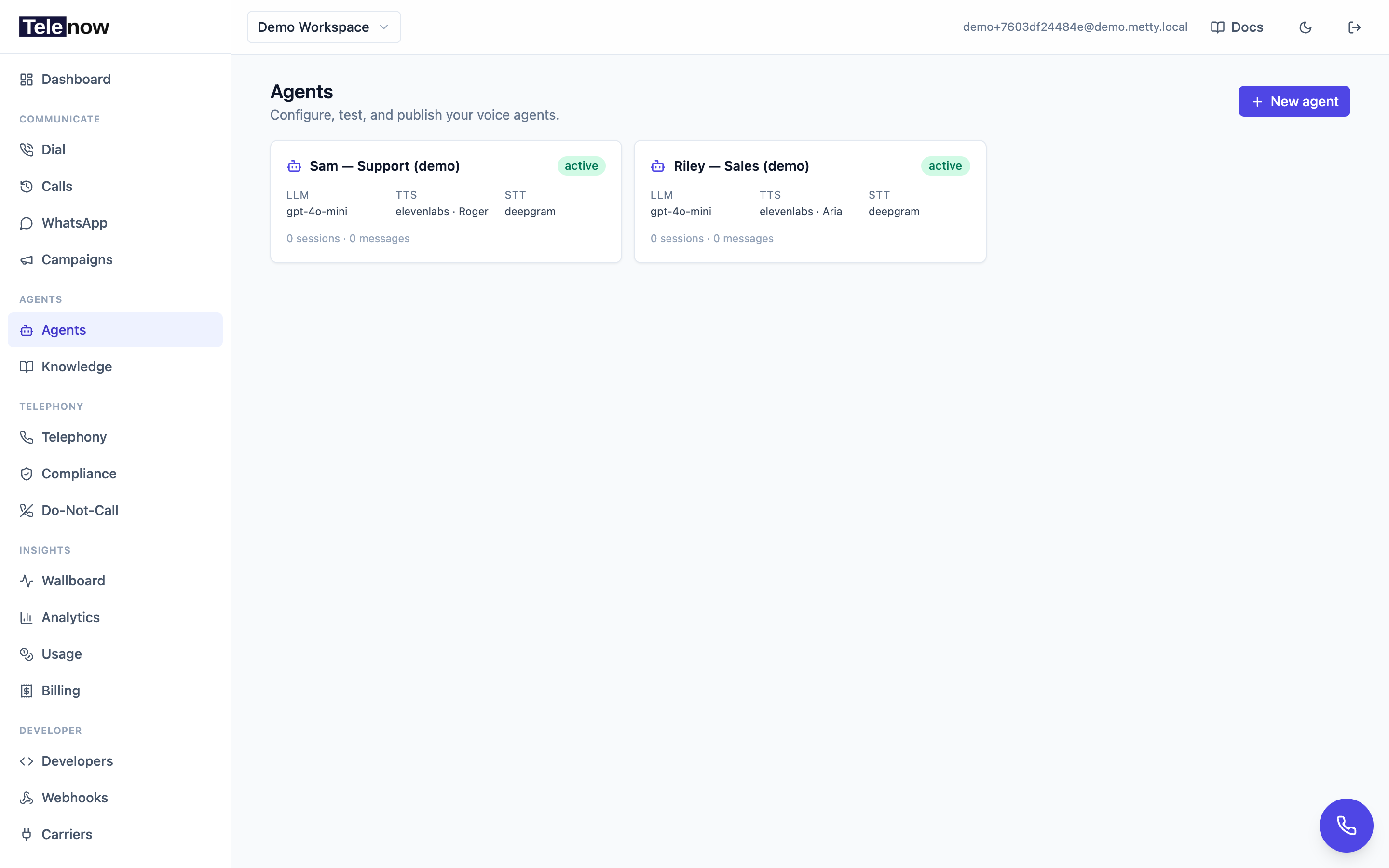
The Agents page — every agent with its model stack at a glance. New agent opens the builder.
The builder
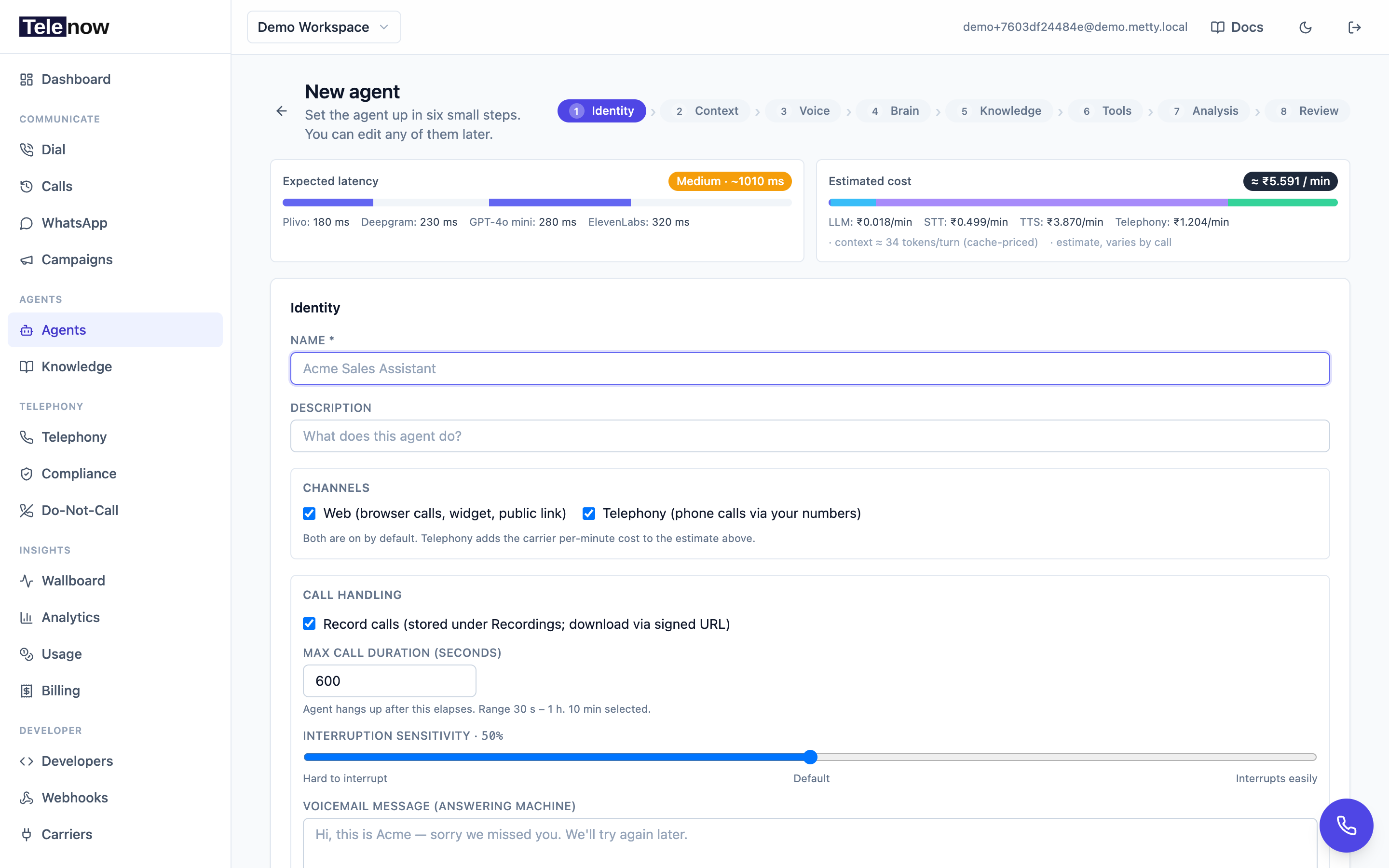
Step 1 (Identity) — name, channels, phone number, recording, call duration, silence hangup, and voicemail. The live cost-per-minute and latency estimates at the top react to every choice you make.
The agent builder is a single page split into nine steps you can jump between freely — Identity → Context → Transcription → Brain → Voice → Knowledge → Tools → Analysis → Review. The voice stack sits in the middle in the order audio flows through it (Transcription hears the caller, Brain decides, Voice speaks). Your input is kept in one place, so moving back and forth never loses anything. A Continue / Back bar is pinned to the bottom; the last step's button saves.
Two live bars are pinned to the top throughout:
- Latency bar — the estimated round-trip (carrier → STT → LLM → TTS) for your current provider stack.
- Cost estimate bar — the estimated per-minute cost in your workspace currency. It adds the carrier per-minute leg only when the Telephony channel is on, and drops a provider's leg when you supply your own key (BYOK) for it.
Only developer and admin roles can save an agent. Viewers and members can walk every step but the final save button is disabled.
Identity
- Name — how the agent appears in lists, call logs, and analytics. Required.
- Description — a short note on what the agent does (optional).
Channels
Choose where this agent answers. Both are on by default — most agents take browser tests and phone calls.
| Channel | Covers |
|---|---|
| Web | Browser calls, the embeddable widget, and your public share link |
| Telephony | Phone calls placed/received through your numbers |
Turning Telephony off removes the carrier per-minute cost from the estimate bar (the web pipeline has no carrier leg). Your selection is saved to metadata.channels.
Phone number
When Telephony is on, an inline Phone number picker lets you bind one of your workspace numbers to this agent right here — no separate trip to the Numbers page:
- A radio list of every allocatable number, each showing its E.164 number, a provider badge (or SIP trunk for trunk DIDs), and a BYOC badge for numbers you imported on your own carrier account.
- None / assign later — leave the agent unbound for now (the default for a new agent).
- A number already attached to another agent is shown disabled with an "in use by <agent>" note — a number rings exactly one agent for inbound.
- If you have no numbers yet, the picker links straight to buy a number or connect a SIP trunk.
Assignment is best-effort and applied after the agent saves: the agent row is written first, then Telenow swaps the old/new binding. If the carrier (or the inbound-exclusivity guard) rejects the change, you get a toast — the rest of your edits are already saved. You can always (re)assign later from Phone numbers.
Call handling
| Setting | Default | Range / notes |
|---|---|---|
| Record calls | On | Recordings appear under Calls and download via signed URL. Per-call override is possible from the API. |
| Max call duration | 600 s (10 min) | 30 s – 3600 s (1 h), in 30 s steps. The agent hangs up when this elapses, so a runaway call can't bill forever. |
| Hang up on user silence | On for new agents | See below. |
| Interruption sensitivity (barge-in) | 0.5 (50%) | 0 – 1. Lower = hard to interrupt (agent keeps talking through background noise); higher = yields at the slightest sound. 0.5 matches the historical default. |
| Noisy-room mode | off | Only react to speech meant for the agent. Voices from people nearby, or the caller talking to someone else, are held instead of interrupting the agent or getting a reply. The agent learns the caller's own voice from their first clear turns (never from speech while it is itself talking, and it knows its own voice coming back through the microphone) and never ignores it; a voice it does not know has to be heard twice before it is ignored; nothing is ignored before the caller has been heard once, and if the agent has ignored three utterances in a row, the next one is always answered. Off = the platform default, which measures the same signals without acting on them. |
| Voicemail message | empty | Spoken automatically (then the agent hangs up) when a machine answers an outbound call. Filling it in turns on answering-machine detection by itself — the agent waits for the beep before speaking. A machine is caught either by the carrier or, if the carrier misses it, by the agent recognising the greeting it hears. Leave blank to drop silently. Skipped when IVR Hangup or Call Screen Handling is on (those take precedence). Max 500 chars. |
Hang up on user silence. New agents default this on with a 15-second window. If the caller goes quiet for that long, the agent first plays a "still there?" check-in partway through; if the silence continues it speaks the goodbye message and ends the call. You can tune:
- Silence before hangup — 5 – 120 seconds (default 15).
- Goodbye message — the line spoken just before hanging up. Leave it blank and the agent says its own short goodbye in the caller's language.
Turn the toggle off and the agent only ever re-prompts "are you still there?" and stays on the line — never hanging up on silence. Existing (legacy) agents stay off unless you turn it on; only newly created agents start with it enabled.
Public embeds
A checkbox at the bottom of the Identity step lets you allow public web embeds / share link. You can also toggle this later on the Publish tab.
Context (system prompt & opener)
The Context step holds the agent's instructions and its first line.
- System prompt — the persona, goals, and guardrails the LLM sees on every turn. This is the single most important field: be specific about tone, reply length, and how to handle unknowns. Required.
- Context variables — write
{placeholder}tokens in the prompt (or the opener) and the builder detects them, listing each so you can mark it required or optional. Values are supplied per call (test, API, widget, or campaign). See Context variables. - Conditional sections — wrap part of the prompt in
{#if {plan} == 'Pro'}…{#else}…{/if}and each call gets only the branch its variables select, decided once when the call starts. Add condition builds the tag from pickers, Preview with values shows the prompt exactly as the model would get it for sample values, and Publish stays disabled while a section's tags don't pair up (Save draft still works). Sections work in the prompt only, not in the openers. See Conditional prompt sections.
Generating the prompt from a brief
Above the prompt box, Generate this prompt from a brief opens a short form — what the agent does, the workflow it follows, what is in and out of scope, the rules it always follows, the guardrails it must never cross, and when to hand off. Fill in as much as you can and the generator writes the finished prompt.
Nothing is applied until you say so. The preview shows the generated prompt with its character count and any warnings before you choose Replace or Append. Whichever you pick, the header's Undo reverses it like any other edit.
Two things the preview flags are worth acting on:
- Undeclared
{variables}— a placeholder you haven't defined renders as blank text on a live call, not an error, so the agent would read a sentence with a hole in it. Either remove it or add it as a context variable. - Missing tools — if your workflow needs an action the agent has no tool for (booking, a lookup, taking a payment), the generator names it. Add it on the Tools step, or the agent will only ever be able to talk about that step.
Improve the current prompt rewrites what you already have instead of starting over — it keeps your intent and domain wording and tightens the rest.
When the agent has declared context variables and your brief describes behaviour that depends on them ("skip the plan overview for returning customers"), the generator can write conditional sections on those variables, and only on those. A generated section whose tags don't pair up is flagged in the preview's warnings.
The generator is deliberately narrow: the prompt is the only field it ever writes, so it is safe to run on an agent you have already configured — your greetings, voice, tools and knowledge are left exactly as they are. To have AI set up the whole agent — model, voice, tools, knowledge — or to have it write your openers, use the AI Copilot panel beside the builder instead.
First response (opener)
The agent's first line is set per call direction — inbound and outbound each have their own toggle and their own text:
- Inbound opener — spoken when someone calls the agent. Turn the toggle off and the agent stays silent, waiting for the caller to speak first. Use that for IVR-style routes, survey flows, or when an upstream system has already greeted.
- Outbound opener — spoken when the agent dials out (campaigns, follow-ups, and API/workflow calls). Turn it off and the agent waits for the person it called to speak first.
Each opener is pre-warmed (pre-synthesized) at session start, so it plays with near-zero added latency (~200 ms) — no awkward silence while the model thinks. Keep each under two sentences. {braces} in either opener are detected as context variables, and the same date/time auto-fills apply.
Existing agents keep working unchanged: until you re-open and save one, its outbound calls reuse the single opener it had before. Saving in the builder writes both openers explicitly.
You can also override the opener per call over the API — pass firstResponse to initiate-call and that text becomes the first line for that one call, taking precedence over the configured outbound opener. Omit firstResponse to use the agent's outbound opener. See Programmatic phone calls.
The voice stack is set up in the order audio flows through it — Transcription → Brain → Voice — and each step holds only its own provider's settings.
Transcription (speech-to-text)
- Transcription (STT) — transcribes the caller in real time (Deepgram and others). Pick the provider; it has its own options panel and a bring-your-own-key (BYOK) field.
Brain (LLM)
Choose the reasoning engine:
- LLM provider + model — OpenAI, Anthropic, Groq, Azure OpenAI, OpenRouter (free-text any model ID), Bedrock, Sarvam (Sarvam 105B Conversations, tuned for Indian-language voice dialogue), and the two custom options below.
The provider has its own options panel and a bring-your-own-key (BYOK) field. Model availability and pricing come from the central catalog.
Bring your own model. Two LLM options are for custom setups:
- Custom LLM — point at any OpenAI-compatible endpoint (a self-hosted Llama, a private gateway). You set a base URL and model; everything else (tools, RAG, memory) still runs on Telenow. Your serving framework must support function calling for tools to fire.
- Custom API — plug in your own agentic backend. Telenow relays each turn to your endpoint and speaks the streamed response while your service owns the logic (tools, RAG, memory, prompt). With Custom API the builder's Tools step is informational only — define tools inside your endpoint.
See Custom LLM & API for configuration.
Conversation context per turn
This selector (in the Brain step) controls how much of the conversation Telenow sends the model on each turn. It maps to session_config.contextMode:
| Mode | What it sends | Trade-off |
|---|---|---|
| Last N turns (windowed) — default | The most recent N turns (default N = 10) | Lowest, most predictable cost + latency. The agent may forget detail older than N turns — pair with caller memory or rolling summary to mitigate. |
| Rolling summary + recent turns | A running summary of older turns + the last N verbatim | Near-flat per-turn cost on long calls, with a small risk the summary drops a fine detail. Requires a platform model (otherwise falls back to windowed). |
| Entire conversation | Every turn until the call ends | Never forgets within a call, but token cost + latency grow with length — long calls get expensive and can hit the model's context limit. |
For the two windowed modes, set Keep the last N turns verbatim (1 – 500, default 10). A turn is one customer message plus the agent's reply, so the agent keeps the last N full exchanges verbatim — not N lone lines. The default for any new agent is windowed / 10. Agents saved before this selector existed hydrate from the legacy contextWindow value (0 → full, otherwise windowed).
Voice (text-to-speech)
- Provider — the TTS engine (Telenow, ElevenLabs, Sarvam, Smallest, Cartesia, Soniox, xAI (Grok), … —
GET /api/catalogis the live list). Picking a provider resets the voice and provider options. - Voice — the spoken voice. For providers with a voices API (ElevenLabs and others) Telenow loads your account's live voice library once you add your key; otherwise it shows the built-in curated list. Browse & preview voices opens a richer picker where you can hear each one.
- Provider options — per-provider tuning (model/engine, stability, style, speed, …).
- Test this voice — type sample text and hear the real call-quality output with your exact voice and settings before you commit.
- Test the whole stack — Voice is the last of the three, so once STT, Brain, and Voice are set, the one-click preflight at the bottom of this step exercises everything the caller will hit.
Knowledge
Attach one or more knowledge bases so the agent grounds answers in your documents (RAG). The agent searches the attached bases on every user turn and threads the top matches into its context. You can create a new base inline from this step without leaving the builder; attachments are synced when you save.
An attached base covers all of its documents, including ones added later. To limit an agent to part of a base — one base serving several agents, each speaking from a different slice — open the base's All documents chip and switch to Choose documents. The summary on the review step then reads e.g. 2 attached · 1 limited to specific documents. See limiting an agent to some of the documents.
Tools
Give the agent functions it can call mid-conversation:
- HTTP tools — the LLM calls your HTTPS endpoint (e.g. look up an order, book a slot). Telenow POSTs
{ name, arguments }(theparametersJSON Schema drives the arguments) and feeds the JSON response back to the model. A per-tool timeout (1 – 30 s, default 15) and an optional bearer token are available. - Connector tools — ready-made actions from the integrations catalog (send a WhatsApp message, create a CRM lead, append a sheet row, …) through accounts you connect once. See Integrations below.
- Transfer to human — hand the live call to a person/department.
- End call — let the agent wrap up gracefully.
Each tool can carry a handoff line (spoken while it runs, e.g. "Let me check that for you…") and a require caller confirmation flag (the agent reads the action back and waits for a yes — always enforced for payments). Tool invocations are logged and delivered via the tool.invoked webhook. Full definitions (including the transfer contract and the HTTP webhook shape) are in Tools & function calling.
(Leaving a voicemail is not a tool — it's automatic via answering-machine detection using the voicemail message you set on the Identity step.)
You can also turn on Send caller identity to tools here: a trusted caller block is injected into HTTP & MCP calls. The toggle governs the two placeholders that identify a person — {caller_number} and {caller_identifier} — which resolve to empty until you turn it on. {caller_channel} and {session_id} identify nobody and always resolve, toggle or not. The system fills all of them — the model can't spoof them. See caller identity.
Integrations (connectors)
Connect a vendor account once under Workplace → Integrations, then add its actions to any agent as one-click tools. Credentials stay encrypted in the workspace vault, and the agent references only the connection — so you can swap vendors later without touching the agent. The catalog covers WhatsApp (built-in, Plivo, Meta Cloud API, AiSensy, GupShup), Razorpay, Stripe, Freshdesk, Zendesk, Google Sheets, Zoho CRM, Salesforce, HubSpot, GoHighLevel, Microsoft Dynamics 365, Intercom, Google Calendar, Calendly, Cal.com, Airtable, JotForm, Typeform, and Tally, plus any OpenAPI or MCP server you import.
On the CRMs the tools are named by what they do, not by the vendor — Look up a contact, Create a task, Log a phone call — and the same name means the same thing on every one of them, taking the same arguments. That is what lets you point an agent at a different CRM later without rebuilding it.
For the full connector table, per-tool binding ("Load fields" for Sheets / Airtable / JotForm), confirm-before-execute, and dry-run testing, see Integrations (and WhatsApp for messaging specifics).
Analysis (post-call analysis & caller memory)
The Analysis step turns on two post-call features for this agent (both stored in the agent's metadata):
- Post-call analysis — automatically extract a summary, sentiment, disposition, action items, your custom fields, a QA rubric score, and an LLM-judge scorecard from every finished call. Turning it on adds an Analysis tab to the agent.
- Caller memory — remember individual callers across calls so the agent greets them by name and doesn't re-ask what it already knows. Set a retention window (default 90 days).
Review
A read-only summary of the key choices (name, models, opener, recording, voicemail, max duration, interruption sensitivity, knowledge, tools, public). Save from here.
Transferring calls
An agent can transfer a live call to a person or department — either automatically via a transfer tool (the agent decides), or on demand from your backend with POST /api/sessions/{id}/transfer. See Tools & function calling and Sessions & calls.
Multi-context Flow agents
The builder above produces a single-context agent — one prompt, one brain, one voice. For branching, multi-step calls (booking, triage, qualification, IVR routing) you can instead build a multi-context Flow agent: a visual graph where each node carries its own prompt, model, voice and tools. Pick Multi-context flow in the create chooser, or open any existing agent on the canvas with Convert to multi-context. See Flow agents (graph) for the full guide.
Versioning & flow
Two read-only views complement the builder on the agent's detail page:
- Versions — every save is kept as an immutable snapshot. The Version history panel lists each version (who saved it, when, what changed) with one-click Restore to roll the whole config — prompt, models, voice, tools, analysis settings — back instantly. Restoring appends a new version, so nothing is ever lost and undoing a restore is just another restore. See Agent versioning.
- Flow — a live, read-only map of how the agent handles a call (entry channel → greeting → STT → LLM → TTS → tools → analysis/memory). It's derived entirely from the current config, so it's always in sync, flags anything that needs attention, and each block deep-links into the matching builder step. It's a visualization of a single-context agent — to edit a graph, build a Flow agent instead.
Testing an agent
Use Test call on the agent page to talk to it in your browser — no phone number required. This exercises the exact STT → LLM → TTS pipeline that production calls use, including barge-in (you can interrupt the agent and it stops talking). If the agent has required context variables, fill them on the Test variables card first.
Activating & using an agent
Once saved, an agent can be:
- Attached to a phone number for inbound/outbound PSTN calls — see Phone numbers.
- Published as a public web link or embeddable widget — see Publishing & embedding.
- Invoked over the API for programmatic web calls — see Programmatic web calls.
Tips for quality
- Keep the system prompt focused; long, contradictory prompts make agents wander.
- Leave the opener on so people aren't met with silence — and keep it short, since it's pre-warmed for the first line. Tailor the outbound opener to a call you placed ("Hi, this is … calling about …") rather than reusing the inbound "thanks for calling" line.
- Lower-latency model/voice combinations feel more natural on the phone — watch the latency bar.
- Attach a knowledge base instead of stuffing facts into the prompt; it scales better and is easier to update.
- On long calls, prefer rolling summary over full context to keep cost and latency flat.