Context variables
Context variables let one agent serve many callers with personalized prompts. You write {placeholder} tokens in the agent's context (its system prompt and its greeting/opener), and supply a value for each one when a call starts — from a test call, the API, the public widget, or a campaign contact list. Both the prompt and the opener are rendered with the same value map before the agent speaks. See Building agents → Context for where these live in the builder.
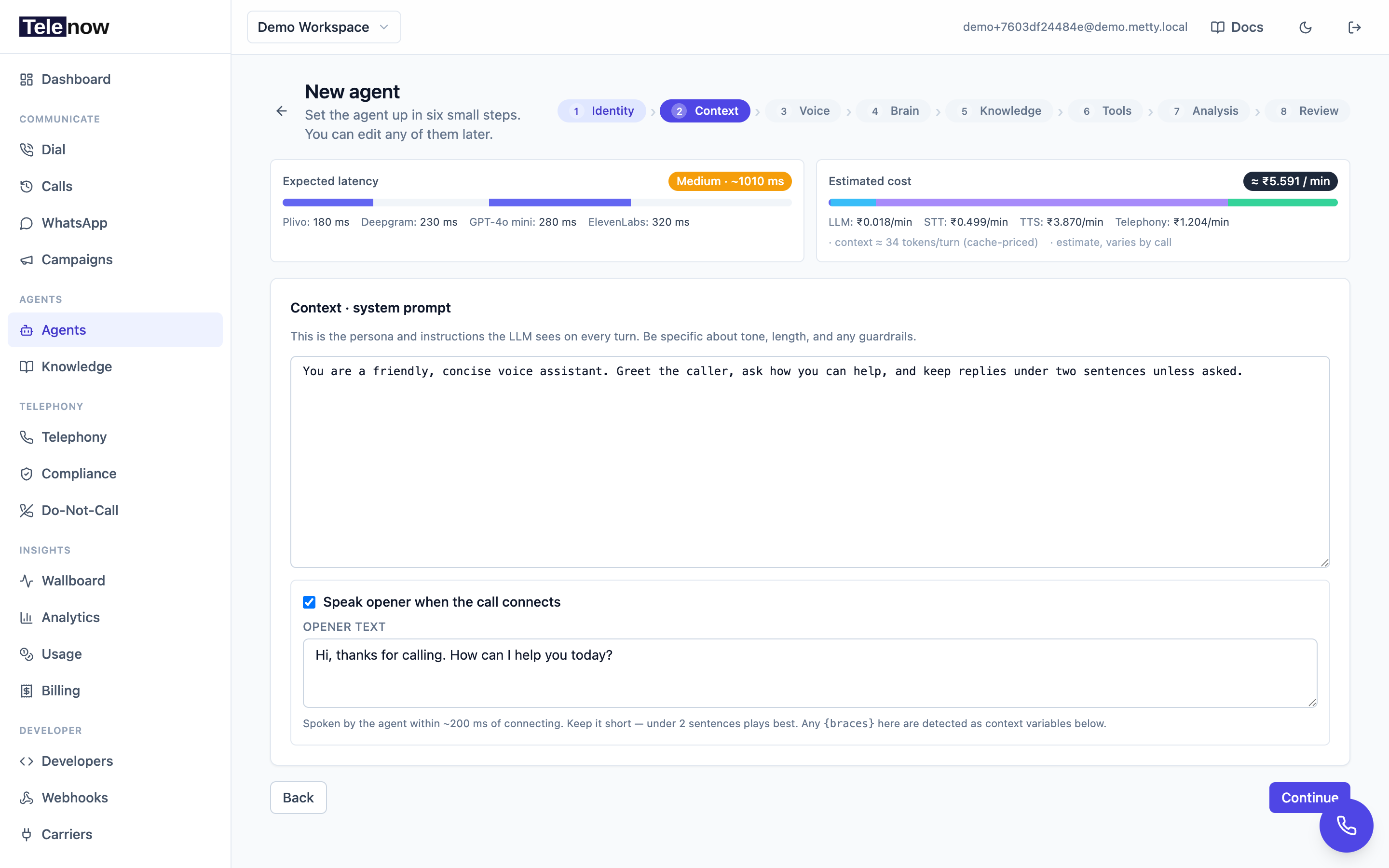
The builder's Context step — write {placeholders} in the prompt or opener and they're detected automatically; mark each one required or optional.
You are calling {customer_name} about invoice {invoice_id}.
Their plan is {plan}. Be warm and concise.
With customer_name = "Alex", invoice_id = "INV-204", plan = "Pro", the agent's prompt becomes "You are calling Alex about invoice INV-204. Their plan is Pro."
Defining variables
Open the agent builder's Context step and type {name} tokens anywhere in the system prompt — or in the Opener text when "Speak opener when the call connects" is on. A Context variables panel lists every placeholder it detects in either field. For each one you choose:
- Optional (default) — if no value is supplied, the variable resolves to nothing (an empty value, stored as
null). - Required — a call is rejected if the value is missing or blank. Use this for variables the agent can't function without.
The list always tracks the placeholders in your prompt: add {city} and it appears; remove it and it drops off. Required flags are saved on the agent (under metadata.variables) and persist across edits.
Types and choices
A declared variable can also have a type, set in the Variables panel (the Variables button on the builder's toolbar, or Set types and defaults under the context variables). It's optional. An untyped variable is used exactly as supplied, as before.
| Type | What happens to a value when the call starts |
|---|---|
| Text | Spaces around it are trimmed. |
| Number | Trimmed. It is compared as a number wherever it reads as one. |
| Yes / no | true or 1 becomes true; false or 0 becomes false, in any case. Anything else is kept, trimmed. Words such as "yes" are not converted. |
| Choice | You list the allowed values. A value that matches one of them, ignoring case, surrounding spaces and Unicode composition, is stored as that choice exactly as you wrote it. Anything else is kept, trimmed. |
The rewritten value is what the whole call uses: placeholders, flow exits, tools and conditional sections. So {vip} == true matches a caller sent with TRUE or 1, and {plan} == 'Gold' matches gold . Only values the call starts with are rewritten (API, campaign, widget, test panel, defaults), not values captured during the call. The Test variables card shows Yes / no and Choice variables as dropdowns.
Typing a variable that conditions already test can stop them matching: once plan is a Choice of Gold / Silver, an existing {plan} == 'gold' never holds. The Variables panel lists each such condition on the variable's row. Over the API the type is metadata.variables[].type (text, number, boolean or choice) and the list is choices. See Conditional prompt sections → Typed variables.
Syntax rules
- Single braces only:
{name}. Double braces are an escape for a literal brace —{{renders as{and}}as}— so prompts containing JSON examples are left untouched. - Valid names start with a letter, digit, or underscore and may contain letters, digits,
_, spaces,.and-(up to 64 characters). An empty or malformed{ }is treated as plain text, not a variable. - The same
{name}may appear as many times as you like; every occurrence is substituted. - Substitution applies to the system prompt and the greeting/opener.
{#if …},{#elif …},{#else}and{/if}are not variables. They are the tags of conditional prompt sections, which keep or drop part of the prompt per call. The{name}inside a condition is detected and listed like any other placeholder.
Supplying values
Where values come from depends on how the call starts.
Testing on the agent page
The agent page shows a Test variables card with one input per variable (required ones are marked). Fill them in, then use Test in browser or Place test call — the values are applied to that test conversation. Required variables must be filled before a test can start.
Over the API
When you start a call from your own system — an outbound phone call, or a browser web call started from your server — send the values with it as a variables object ({ "name": "value", … }). A call missing a required variable is refused before it starts, and the refusal names what is missing. Optional variables you leave out are empty.
For the API, see Sessions & calls API → Place an outbound call.
Public widget & embed
When a published agent has variables, the public page and embedded widget ask the visitor for the required ones before connecting. You can also pre-fill values the embedding page already knows, via the script tag:
<!-- preferred: JSON, preserves capitalization -->
<script async src="https://telenow.ai/widget.js"
  data-slug="YOUR_AGENT_SLUG"
  data-vars='{"customer_name":"Alex","plan":"Pro"}'></script>
Pre-filled values are passed straight through; the visitor is only asked for required variables that weren't pre-filled. (HTML lowercases attribute names, so the data-var-<name> shorthand only works for all-lowercase variable names — use data-vars JSON otherwise.) The Publish panel generates a snippet listing your agent's variables.
Campaigns
For outbound campaigns, each contact supplies its own values. Upload a CSV or Excel file on the campaign page: the importer reads your columns and lets you map each one to a variable (it auto-matches columns whose names match). You can also add a single contact by hand, filling a field per variable. Each contact's values are substituted into that contact's call. See Campaigns API for the programmatic equivalent.
Built-in date & time variables
Some variable names are auto-filled by the platform at call time — you never need to supply them (the test panel marks them "Auto"). They resolve in the platform timezone (IST by default; operators can override with PLATFORM_UTC_OFFSET_MINUTES):
| Placeholder | Example value |
|---|---|
{current_ist_datetime} / {current_datetime} | Thursday, 11 June 2026, 12:15 PM |
{current_ist_weekday} / {current_weekday} | Thursday |
{today_date} | Thursday, 11 June 2026 |
{tomorrow_date} | Friday, 12 June 2026 |
{day_after_tomorrow_date} | Saturday, 13 June 2026 |
{current_date} | 2026-06-11 (ISO, for date arithmetic) |
{current_time} | 12:15 PM |
{current_timezone} | Asia/Kolkata (the call's resolved zone) |
{current_utc_offset} | +05:30 (that zone's offset right now, DST included) |
They work everywhere placeholders work — prompt, opener, every channel including inbound. Supplying your own value for one of these names overrides the auto-filled one.
{current_ist_*} are always India, whatever the call's zone — the name says ist, so it means IST. Every other name follows the call's resolved timezone. {today_date}, {tomorrow_date} and {day_after_tomorrow_date} are always consecutive calendar days in that zone, and {current_date} names the same day as {today_date} — so a prompt can speak one and send the other to an API without them disagreeing.
Inbound calls
A call coming into a number has no caller to supply values, so every placeholder resolves to empty on inbound — except the built-in date/time variables above, which still auto-fill. Design prompts so they still read well when an optional variable is blank, and don't rely on required variables for inbound-only agents.
Tips
- Prefer optional variables with prompts that degrade gracefully ("…about your recent order{order_ref}") so a missing value never breaks the call.
- Keep variable names consistent with your CSV/Excel headers — the campaign importer auto-maps matching names.
- Variables are for values. When the instructions themselves should differ per call (new vs returning caller, plan, channel), use conditional sections so each call's prompt carries only the instructions that apply:
{#if {plan} == 'Pro'}…{#else}…{/if}.