Outbound campaigns
Outbound campaigns
A campaign dials a list of contacts with one of your agents, at a concurrency you choose and within an optional calling window. Use campaigns for reminders, surveys, follow‑ups, debt collection, lead qualification, and any other bulk outbound work.
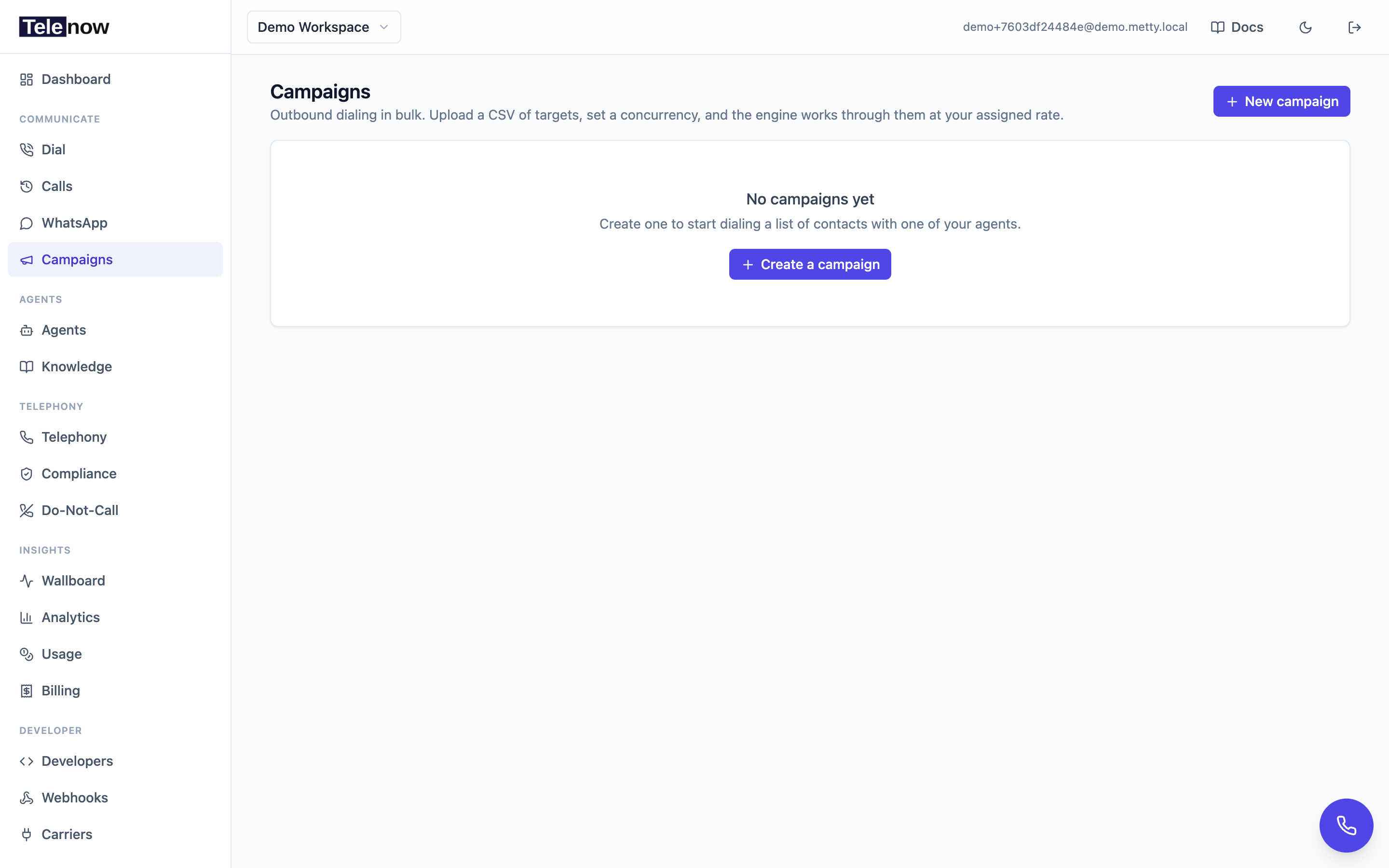
The Campaigns page — create a campaign, upload contacts (CSV/Excel), pick the agent, calling window and retry policy, then watch progress live.
Everything below can be done end‑to‑end from the dashboard, or scripted through the Campaigns API.
Creating a campaign
-
Go to Campaigns in the sidebar → click New campaign.
-
Give it a Name (e.g. "Q1 outreach").
-
Pick the Agent that will run the calls. Only agents in your organization appear here, and if the agent uses context variables the dialog reminds you which ones to supply per contact.
-
Set Concurrency — how many calls run in parallel. Default 5, range 1–50 (values are clamped to this range). Keep it within your telephony provider's per‑account rate limit.
This is an upper bound for this campaign, not extra capacity. Your per-number concurrency limit — 2 by default — still applies, so a campaign set to 10 on a single number dials two at a time. To actually go faster, spread the agent across more numbers or ask your platform admin to raise the per-number cap.
-
Optionally set the calling window, answering‑machine detection, and retry policy (all explained below).
-
Click Create. The campaign starts in draft so you can upload targets and review settings before any dialing happens.
Creating, editing, uploading (including sheet import and managing sources), starting, pausing and retrying all require the owner, admin, or developer role. Cancel and Retry failed require owner or admin. Viewers can see campaigns but not change them.
Uploading targets
On the campaign detail page, use the Add targets card.
- Upload a file — drop or choose a
.csvor.xlsx/.xlsfile. Excel files are parsed right in your browser, so you get true spreadsheet support. - Map columns — Telenow auto‑detects a phone column (it looks for headers like
phone_number,phone,mobile,number,msisdn) and auto‑maps any column whose header matches one of the agent's variables. You can override every mapping with the dropdowns. The phone column is required; any agent variable marked required must also be mapped before you can import. - Preview — the first five rows are shown so you can confirm the mapping looks right.
- Add one manually — for a single contact, type the phone number and fill in the variable fields directly.
Straight from a connected source
Beside the file upload is Add from a source — the same targets, without the export-and-upload round trip. It needs something connected under Workplace → Integrations:
| Source | What it reads | Write-back |
|---|---|---|
| Google Sheet | any tab of a spreadsheet | yes — to your own columns |
| Airtable table | every record of a table in a base | yes — to your own fields |
| HubSpot contacts | the account's contact list | yes — to your own properties |
| Salesforce leads | the Lead object | yes — to your own fields |
| Zoho CRM leads | the Leads module | yes — to your own fields |
| WooCommerce customers | the store's customer list | no |
| Database | PostgreSQL, MySQL, SQL Server or MongoDB — a SELECT you write | yes — update the row, or insert a new one |
Two more ways in that aren't in the picker, because they aren't things we pull:
- Your own API — under Workplace → Integrations → Custom API, add a capability pointing at your endpoint and tick "Use this to fill a campaign". Tell it where the rows are (
data), which field is the record id, and how your API pages (?page=2, or a cursor from the response). It then behaves like any source above — paged, de-duplicated, scheduled, and written back to if you nominate a capability that updates a record. Verify it with Read columns when you add it to a campaign: that shows the columns it actually found, which is the only real check that your paths are right. - Your own system, pushed instead of pulled — if your database isn't reachable from the internet, your job sends rows to us. See Pushing targets from your own system, which includes ready-made sync scripts. Nothing to allowlist.
Want every call an agent takes logged somewhere — not just campaign calls? See Call destinations.
If you run Facebook or Google lead ads, this is the path: those leads land in Salesforce, Zoho or HubSpot through the ad platform's own CRM integration, and the campaign dials them from there and writes the outcome back onto the lead.
Only the sources you have connected are offered. The steps are the same whichever you pick:
- Source — which of the above. Shown only when you have more than one connected.
- Read as — pick the connected account. An org can hold several accounts of one provider, and data shared with one is invisible to the others, so this is the first thing to check when something "can't be found".
- The target — a sheet URL and tab, an Airtable base and table, or nothing at all for HubSpot, which has one contact list per account.
- Read columns — the first rows are shown, the phone column is guessed, and you map columns to your agent's variables (below).
- Write the result back (optional) — only offered for sources that can be written to. See below.
For a database the target is a SELECT you write, and Read columns runs it — so a mistake comes back as your database's own message (column "phon" does not exist) rather than a generic failure. Full walkthrough: Connecting your database.
Matching columns to your agent's variables
Your agent's prompt refers to variables by name — {name}, {plan}. A column called first_name won't fill {name} on its own, so each variable the agent declares gets a row to point at a column:
name    *  ←  first_name
plan       ←  Plan
renewal *  ←  — not filled —
Columns whose names already match are filled in for you. A required variable left unmapped is flagged before you import — a prompt with a hole in it is better caught here than after 500 calls. Any other column you tick travels under its own name, as before.
The whole read happens on the server, so your credentials never reach the browser and closing the tab can't leave a half-filled campaign.
Re-importing is safe. Records are matched on their own address — a sheet's row number, a record id everywhere else — so running the import again adds only what appeared since; it never dials anyone twice. Imports run in batches of 10,000 records; when more remain you're told to run it again, and it continues where it stopped.
Where the phone number comes from
Nothing is assumed about which field holds the number — you pick it, from the columns actually read. Two are worth knowing about:
- HubSpot returns
phoneandmobilephone. Pick whichever your team fills in. - WooCommerce keeps the number under the customer's billing address, so it appears as
billing.phonerather thanphone.
Sources that aren't offered
Intercom, Typeform and Shopify are connected for other purposes but cannot fill a call list. Intercom has no bulk contact reader; a Typeform response holds its answers in a typed array with no stable column names, and Shopify pages its customer list through an HTTP header the connector doesn't expose. Both would import blanks rather than fail loudly, which is worse, so neither is listed.
Write-back: what lands back in your source
Map Status / Attempts / Called at onto your own columns, fields or properties — whatever the source calls them. Leave them blank and nothing is ever written.
The mapping is only offered for sources that can actually be written to. WooCommerce is read-only: a customer record has no field for how a call went, so rather than offer a mapping that silently does nothing, it isn't shown.
If you mapped a status column, each target's outcome is written back as its call finishes — including the ones nobody answered, which is the point: a blank cell then means not dialled yet, never "no answer".
The status column gets the carrier's own verdict — answered, no-answer, busy or failed — rather than a flattened "failed", because that distinction is usually the reason you wanted the column.
Writes are batched every 30 seconds, and each batch is sized to what the vendor accepts (Airtable takes 10 records per call, HubSpot 100, Sheets 500) so a large campaign doesn't exhaust anyone's write quota. Each batch is marked as it lands, so a failure part-way through never re-sends the records that already succeeded.
A few things worth knowing before you map a field:
- Airtable — values are sent with typecasting on, so a plain
no-answerlands correctly in a single-select field as well as a text one. - HubSpot, Salesforce and Zoho — the field or property must already exist, and a picklist must accept the value. All three answer
200 OKand report rejected records inside the response, so every write is checked record by record: if any are refused, the batch is retried and the reason is shown on the source itself (e.g. "No such column 'Call_Status__c'") rather than disappearing into a log. - Salesforce — a good target is
Status, or a custom field. Outcomes are written 200 leads per call. - Zoho CRM —
Lead_Statusis the usual target. Note the connector is pinned to the India data centre (zohoapis.in), the same as the existing lead-create action.
Saved sources and automatic pulling
An import is remembered as a source on the campaign: its kind, its target, the account, the column mapping and the write-back mapping. One campaign can hold several — two tabs of a spreadsheet, or a sheet and a CRM list together — and each is pulled and written back independently. The Sources section lists them, and each has a schedule:
| Only when I ask | the default — nothing happens until you import again |
| Every 15 minutes / Hourly / Every 6 hours / Daily | new records are pulled automatically |
Because re-imports dedupe on each record's own address, an automatic pull only ever adds what was added since. If a pull fails — access revoked, tab renamed, a base deleted — the reason is shown on the source itself rather than only in a log.
Removing a source stops the pulling and the write-back; targets already imported stay.
Each contact's mapped values become its context variables, substituted into the agent's prompt and opener when that contact is dialed (e.g. {first_name}, {appointment_time}).
Unmapped columns are kept too. Any extra column that you don't explicitly map to a variable is still preserved as a per‑target variable under its own header name — so a account_id column you forgot to map is still available to the agent (and tools) at dial time. Nothing in your file is silently dropped.
Phone numbers are normalised for you
You don't need to clean your list first. Numbers are canonicalised on import:
| Your data | What we dial |
|---|---|
+1 (415) 555-0123 | +14155550123 — formatting stripped, nothing re-guessed |
0044 20 7946 0958 | +442079460958 — 00 means the same as + |
9876543210 | +919876543210 — a bare national number gets its country code |
098765 43211 | +919876543211 — one national trunk 0 is dropped |
N/A, see notes | skipped, and counted separately from empty cells |
A number that already carries a country code is never re-guessed, so an international number sitting in a domestic list still dials correctly.
The country for bare numbers comes from the campaign's timezone, and you can override it per source when a list is for another market — set Country for bare numbers when you add the source. Rows whose phone column holds something that isn't a number are reported apart from empty ones, because junk there usually means the wrong column was picked.
Do‑Not‑Call is enforced at upload time
When you import targets, any number already on your organization's Do‑Not‑Call list is not added to the campaign — it's skipped and counted as suppressed. The dashboard reports this (e.g. "Added 480 targets · 20 skipped (Do‑Not‑Call)"). Suppression is also re‑checked at dial time, so even if you add a number to the DNC list after uploading, any still‑pending call to it will be skipped rather than dialed. See Do‑Not‑Call for the full timing rules.
Scheduling & compliance
Open Edit in the Campaign settings card to configure when and how the campaign dials. You can also set all of these at creation time.
Calling window
Restrict dialing to allowed local hours so you stay within TCPA‑style quiet‑hours rules.
| Field | What it does |
|---|---|
| Call from / Call until | Local wall‑clock HH:MM bounds. Set both or neither — a one‑sided window is rejected. |
| Timezone | An IANA timezone (e.g. America/New_York) the window is interpreted in. Defaults to UTC. |
- Calls outside the window are never dropped — they simply wait, staying pending, and resume automatically when the window reopens. No skip/requeue churn.
- Overnight windows are allowed. A start later than the end (e.g.
20:00–06:00) wraps midnight as you'd expect. - Leave both times blank to dial any hour (no restriction).
- The two bounds must differ; equal bounds would mean "always closed".
Country floors
Some destinations have a calling window in law, and the setting above can't be trusted to reflect it — it's optional, and it's interpreted in whatever timezone you picked. A campaign left on UTC with no window would happily dial an Indian number at 3 AM local time.
So a destination-country floor applies underneath it, keyed on the number itself:
| Destination | Floor |
|---|---|
India (+91…) | 09:00–21:00 IST |
- The floor intersects with your window rather than replacing it, so a stricter setting of your own still wins.
- Numbers in countries with no floor are governed by your window alone, exactly as before.
- Same no-churn behaviour: a call outside the floor stays pending and resumes when the destination's local window reopens.
- Upload targets in E.164 (
+919876543210). A bare 10-digit number carries no country, so no floor can apply to it. - Floors apply to scheduled follow-ups too, not just campaigns. A follow-up booked for 2 AM local time is deferred to the start of the window rather than dialed or failed.
Answering‑machine detection (AMD)
Decide what happens when a machine (voicemail) answers instead of a person:
| Setting | Behavior |
|---|---|
| Off (default) | Fall back to the agent's own setting (below). With nothing set there, a machine is treated like a live answer and the agent talks immediately. |
| Leave a voicemail on a machine | Stay on the line; the agent plays its voicemail message (agent → Identity → Call handling → Voicemail message) then hangs up. Leave that field blank and the call hangs up silently — the mode alone does not supply any words. |
| Hang up on a machine | Drop the call immediately when a machine is detected. |
The agent can turn detection on by itself. A voicemail message, Call Screen Handling, or IVR Hangup configured on the agent each arm answering-machine detection for every outbound dial, whatever this campaign field says — otherwise those settings could never fire. Precedence on a machine answer is IVR Hangup → Call Screen → voicemail message. Note that detection is a per-call carrier charge on Plivo and Twilio.
Backstop: the agent also listens for the greeting. Carrier detection isn't perfect — Exotel, Tata Tele Smartflo and SIP trunks have no per-call detection at all (Smartflo has none whatsoever: Tata's dial API takes no detection parameter and its webhook carries no verdict field, so the backstop below is the only voicemail detector on that carrier), and some carriers report the verdict a few seconds in, before the beep. So if the first thing the agent hears on an outbound call is clearly a machine ("your call has been forwarded to voicemail… at the tone, please record your message"), it treats that as a machine answer too, instead of holding a conversation with the recording. This only applies to outbound calls, only in the first couple of turns, and only to wording a person answering their own phone wouldn't use.
Retry policy
Three independent settings control re‑attempts. They default to the historical 3‑attempt behavior, so you can ignore them if it suits you.
| Setting | Default | Range | What it does |
|---|---|---|---|
| Max attempts | 3 | 1–10 | Total dial attempts per target, including the first. Once exhausted the target is finalized as failed. |
| Backoff (minutes) | 5 | 1–60 | Base wait before a retry. The worker grows it exponentially: base × 2^(attempt − 1), capped at 1 hour. |
| Redial no‑answer / busy | On | on/off | On: an unanswered or busy call is retried (up to max attempts). Off: only hard dial failures retry; a no‑answer or busy is treated as final. |
Hard dial failures (the carrier rejected the API call, a circuit breaker tripped, etc.) always retry until max attempts runs out, regardless of the "Redial no‑answer / busy" toggle — that toggle only governs unanswered/busy outcomes.
Running it
Use the Start / Pause / Cancel buttons at the top of the campaign detail page to move it through its lifecycle:
| Status | Meaning |
|---|---|
| draft | Created, not yet dialing. Upload targets here. |
| running | The dialer is working through targets within the window and concurrency cap. |
| paused | Dialing temporarily stopped; resume with Start. |
| completed | No pending or dialing targets remain — set automatically. |
| cancelled | Stopped permanently; any still‑pending targets are skipped. |
- Start — moves draft or paused → running.
- Pause — moves running → paused. In‑flight calls finish; no new ones are placed.
- Cancel — stops the campaign for good and skips any pending targets. (Cancel is owner/admin only and can't be undone — create a new campaign to redial.)
- A campaign auto‑completes the moment its last actionable call finishes.
The detail page shows live tiles (Targets, Completed, Progress, Concurrency) and a paginated target list with each contact's status, attempt count, last error, and a link to the call's recording and transcript. It refreshes every few seconds while the campaign is active.
Per‑target status
Each target moves through these states (shown as filter chips with counts):
| Status | Meaning |
|---|---|
| pending | Queued, waiting to be dialed (or waiting for the window/backoff). |
| dialing | Currently being dialed. |
| completed | The call connected and ended normally. |
| failed | Out of attempts (hard failure, or no‑answer/busy when retries are exhausted/disabled). |
| skipped | Not dialed — suppressed by Do‑Not‑Call, or skipped because the campaign was cancelled. |
Retrying failures
When a campaign has finalized-failed targets, two buttons appear above the target list (owner/admin). Redial unanswered (N) re‑queues only the targets nobody picked up — carrier no-answer or busy, i.e. people who simply weren't in, often worth another go at a different hour. Retry all failed (N) also sweeps numbers that never connected at all. Each button carries its own count, so it names its effect before you click. Either way the attempt counter resets, the prior error/session is cleared, and the campaign's failed counter rolls back; a completed campaign reopens to running so the dialer picks the rows up, a paused one keeps its state, and a cancelled one is terminal — create a new campaign instead.
Exporting
Click Export CSV above the target list to download the target list (honoring the active status filter) as a CSV — one row per target with status, attempt, last error, timestamps, the linked session id, and a variables column (the per‑target variables as JSON), so you can pivot in a spreadsheet or re‑import elsewhere.
Do‑Not‑Call (DNC)
Maintain a suppression list so opted‑out and complaint numbers are never dialed. Manage it under Do‑Not‑Call in the sidebar — add numbers one at a time, import a list, search, bulk‑remove, and export. See the Do‑Not‑Call product page for the workflow and the Do‑Not‑Call API to automate it. For the TCPA rules behind calling windows and suppression when dialing US numbers, see US calling compliance.
Tips
- Test your agent with a single web or phone call before launching a large campaign — the campaign uses the exact same agent pipeline.
- Keep concurrency comfortably under your carrier's limit; the engine never exceeds the per‑campaign cap you set, but other dialing in your org competes for the same trunk.
- Map an
account_id(or similar) column even if the agent doesn't "use" it — it's preserved as a variable and is handy in post‑call analysis and webhooks. - Use post‑call webhooks to push outcomes straight into your CRM instead of polling.
Troubleshooting
- "start_time_local and end_time_local must be set together" — you set only one side of the calling window. Set both, or clear both.
- Targets stuck at pending and nothing dials — check the campaign is running, the current local time is inside the calling window, and concurrency is at least 1. If you're dialing India, also check the current time against the 09:00–21:00 IST country floor — it applies even when your own window is blank or set to another timezone.
- A number you uploaded never gets called — it's probably on the Do‑Not‑Call list; look for it under the skipped chip (suppressed) and in the import toast count.
- Fewer calls run at once than the concurrency you set — the per-number cap (default 2) is the binding limit, or your workspace's Max concurrent calls is lower. Targets aren't lost: they stay queued and dial as slots free.
- CSV upload rejected — the file needs a phone column. The browser importer looks for one automatically, and the raw‑CSV API endpoint requires a header literally named
phone_number(orphone).
API
Campaigns are fully scriptable — create, upload targets, schedule, start/pause/cancel, read the target list, retry failures, and export. See the Campaigns API.